Image Enlargement Programs
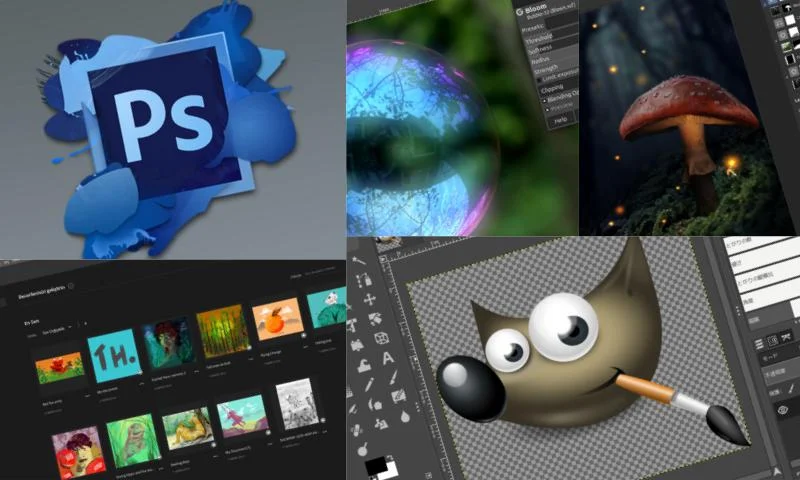
When you want to resize and enlarge small images, the image becomes blurry. With image enlargement programs, you can smoothly enlarge your images again. Bitmap image format is generally used on websites. All image files are actually bitmap files. A bitmap contains thousands of pixels. The photo enlargement programs you see on the internet choose to enlarge these pixels to change the size. To enlarge your images without blurriness and loss of quality; you can use Adobe Photoshop, Gimp, and Irfanview programs.
Enlarging Images Using Adobe Photoshop
You can resize images using Adobe Photoshop's perfect resize feature. Drag and drop the image you want to enlarge into the program. Follow the path File, automate, perfect resize. From the menu that opens on the left side of the screen, you can choose one of the preset sizes or enter your own size. After completing the operations, save by clicking File, apply. You can download the Adobe Photoshop program, which is compatible with Windows, Linux, and macOS operating systems, from the relevant website.
Enlarging Images Using Gimp

Another alternative program to Adobe Photoshop is Gimp. The program helps you enlarge your images without much loss of quality. Gimp enlarges the image size but does not perform as high-quality a process as Adobe Photoshop. Open the image you want to enlarge with the program. Follow the path Image, scale image using the menu. Enter the desired size on the screen that opens. After selecting sinc lanczos3 for the interpolation method under the Quality section, press the scale button. Gimp works smoothly with Windows, Linux, and macOS operating systems. You can download the Gimp program from the relevant website.
Enlarging Images Using Irfanview
Irfanview is one of the photo editing and viewing programs. The program successfully performs image enlargement and reduction operations using an intelligent method. Open the image you want to enlarge with Irfanview. Follow the path Image, resize, resample from the menu. Enter the desired size on the page that opens. Select lanczos from the filter section according to the image size method. Check the box next to Apply sharpen after resample. Irfanview only works with Windows operating systems. You can download the program from the relevant website. In conclusion, when we look at image enlargement programs, there will definitely be a loss of quality. The aim here is to resize the image by minimizing the loss of quality. You too can enlarge your images by minimizing the loss of quality by choosing one of Adobe Photoshop, Gimp, and Irfanview programs.